

Building a WordPress website opens up plenty of possibilities, whether you’re starting a personal blog, launching a business website, or creating an online portfolio. As you explore the platform, you’ll come across different tools and customization options that can shape your website-building experience. But with so many choices available, knowing where to start can sometimes feel overwhelming.
If you’ve spent some time exploring WordPress, you’ve probably noticed that not every website looks or works the same way. Some websites have simple layouts, while others feature sophisticated designs and a wide range of interactive elements. These differences often spark questions about the tools behind them and how you can achieve similar results on your own website.
That’s where understanding the WordPress ecosystem becomes useful. Before you start experimenting with different customization options, it helps to know what resources are available and how they fit into your website-building journey. Once you become familiar with these options, you’ll have an easier time exploring new possibilities without feeling lost in the process.
Of course, your experience also depends on which version of WordPress you’re using. If you’re still getting familiar with the platform, check out our guide, “What Is WordPress.com?“, to learn more about the hosted service and what it offers website owners. Getting to know WordPress.com is a useful starting point for understanding the features, tools, and flexibility available when building your website.
You might also want to explore “What Is WordPress.org?” if you’re curious about the downloadable WordPress software and the freedom it offers through self-hosted websites. Although WordPress.com and WordPress.org share the same underlying WordPress ecosystem, they differ in how websites are hosted, managed, and customized. Understanding these differences will help you navigate the available options and choose an approach that suits your needs.
One thing worth knowing is that WordPress.com offers more flexibility than some beginners might expect. Users on any paid WordPress.com plan can install plugins from the WordPress.com plugin marketplace, access free plugins from the WordPress.org plugin repository, and upload premium plugins purchased from third-party developers, provided those plugins are compatible with the platform. This means you don’t necessarily need the most expensive plan to start exploring a broader range of customization options.
With so many possibilities across the WordPress ecosystem, it’s natural to wonder how the different tools fit into the bigger picture. You might have questions about which options are available, what sets them apart, and how your choice of platform affects the way you build and customize your website. These questions become especially relevant when you’re exploring WordPress for the first time or looking to get more out of an existing site.
That’s why understanding the differences between WordPress themes and plugins is such a useful part of learning how the platform works. Whether you’re using WordPress.com or WordPress.org, getting familiar with the available options can help you explore new possibilities and make more informed decisions as your website evolves. Let’s take a closer look at WordPress themes and plugins and uncover the details that every website owner should know.
WordPress Themes vs Plugins
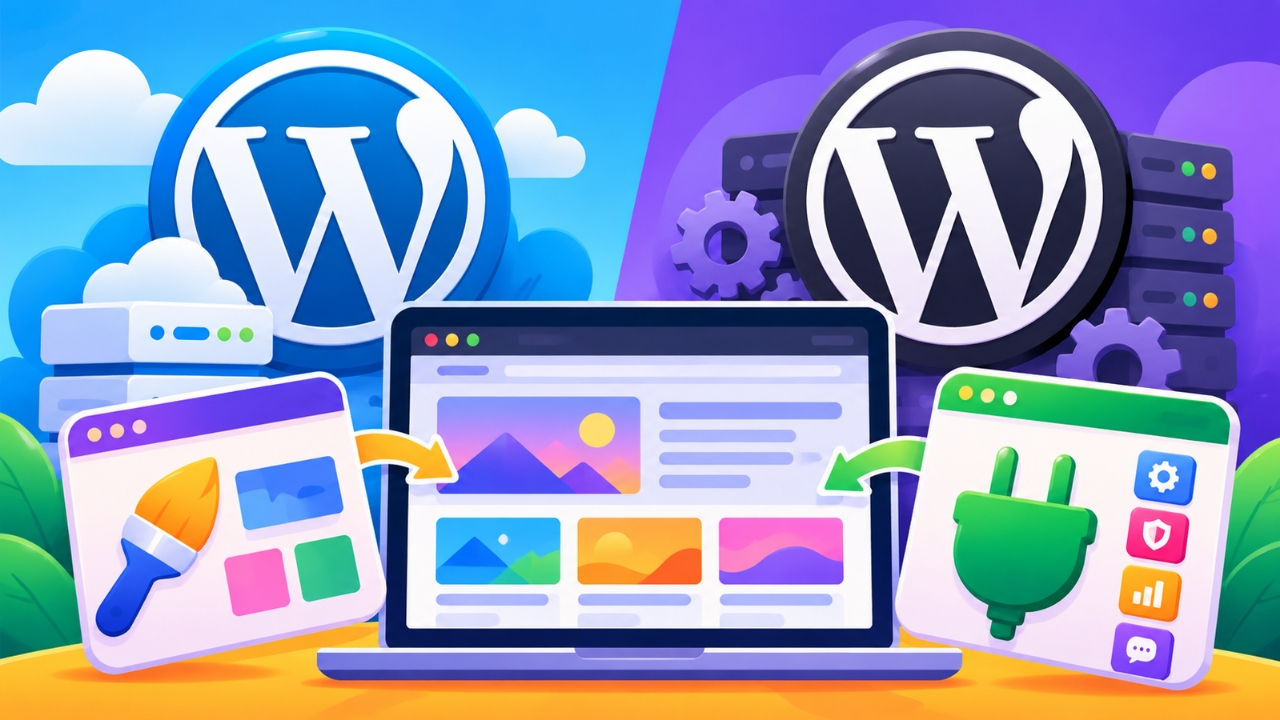
When you start exploring WordPress, themes and plugins are two terms you’ll encounter quite often. Understanding how they fit into the WordPress ecosystem can make it easier to navigate the platform and discover the options available for your website. Before looking at each one individually, let’s explore the differences between WordPress themes and plugins and why they matter.
Although themes and plugins are both part of the WordPress experience, they serve different roles in website customization. Knowing what distinguishes them can help you understand the options available on WordPress.com and WordPress.org, especially when you’re deciding how to personalize your site. It also gives you a clearer starting point for exploring the tools that WordPress has to offer.
To make things easier, we’ll look at WordPress themes and plugins separately, starting with themes. You’ll learn about each one in more detail, explore its place in the WordPress ecosystem, and discover how the available options can vary depending on the platform you use. Let’s begin with WordPress themes.
1. WordPress Theme
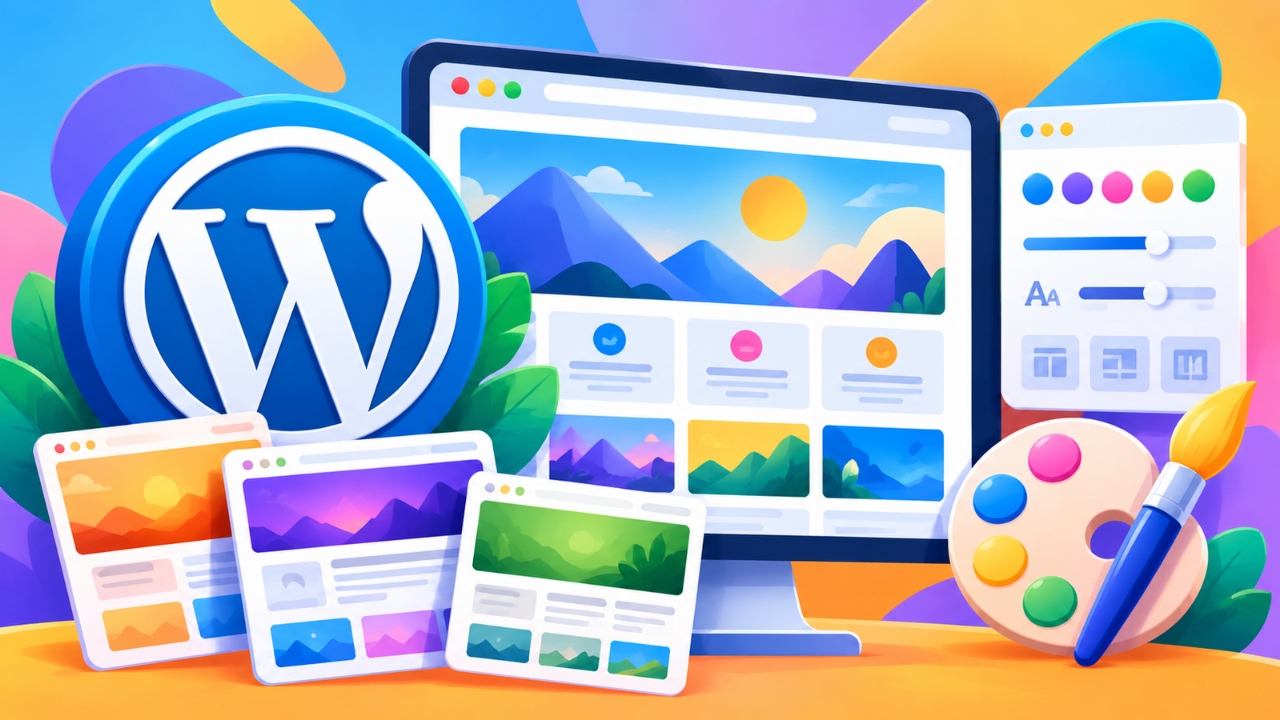
When you start building a WordPress website, choosing a theme is one of the first steps toward creating a design that fits your needs. You’ll find thousands of themes available, ranging from simple layouts for personal blogs to sophisticated designs for business websites and online stores. With so many options to explore, understanding the different types of WordPress themes can help you find the right starting point for your website.
WordPress themes come in two main categories: free themes and premium themes, which are also commonly called Pro themes. Free themes let you get started without paying for a design, making them a practical option if you’re launching your first website or working with a limited budget. Premium themes usually require a one-time purchase or a subscription and may include additional features, customization options, support, or other benefits, depending on the developer.
If you’re wondering whether a free theme is enough, the answer depends on what you want to build. Many free themes offer responsive layouts, useful customization settings, and the essential design features needed to create a professional-looking website. You can find free themes through the official WordPress.org theme directory and the WordPress.com theme marketplace, although the available selections and installation options differ between the two platforms.
Premium or Pro themes are worth exploring when you need more advanced design options or features tailored to a particular type of website. Some offer additional page templates, specialized layouts, extended typography controls, or integrations designed for specific use cases. However, a higher price doesn’t automatically make a theme better, so it’s important to compare its features, support, update history, and compatibility with your website before making a purchase.
Another important consideration is where you get your theme. WordPress.com provides a collection of themes you can explore through its platform, while WordPress.org offers a large directory of free themes for self-hosted websites. You can also purchase premium themes from third-party developers, provided they’re compatible with your WordPress setup and supported installation method.
If you’re using WordPress.com, you can browse the available themes and choose a design that fits your website. The platform also supports installing compatible third-party themes on its paid plans, subject to its current policies and technical requirements. For a step-by-step walkthrough, check out our guide, “How to Install WordPress.com Theme”, to learn how to get started with adding a theme to your WordPress.com website.
With a self-hosted WordPress.org website, you have another route for exploring free and premium themes. You can install free themes directly from your WordPress dashboard or upload a compatible theme package obtained from a reputable developer. If you need help with the process, our tutorial, “How to Install WordPress.org Theme”, walks you through the steps involved in installing a theme on a self-hosted WordPress website.
The type of website you’re building can also influence whether a free or premium theme makes more sense. For example, a personal blog may work perfectly well with a free theme, while a business website might benefit from additional layout options or specialized design features. If you’re planning to launch an online store, it’s worth exploring themes built to work with WooCommerce, especially when product presentation and shopping experiences are central to your website.
Choosing a theme for an online store requires more than finding an attractive design. You should also consider product page layouts, category navigation, mobile shopping experiences, and compatibility with the WooCommerce features you intend to use. To explore your options, check out our guide, “Top Choice WordPress Theme for WooCommerce”, which can help you discover themes worth considering for your eCommerce project.
Before settling on a theme, take a closer look at its customization options and ongoing maintenance. Some themes let you adjust colors, fonts, and layouts through the WordPress Site Editor or Customizer, while others provide their own settings and design tools. Check when the theme was last updated, whether it supports your WordPress environment, and whether its features work with the plugins you plan to use.
It’s also worth remembering that changing themes doesn’t usually remove your published posts and pages because that content is generally stored separately from the theme. However, switching themes can affect your site’s layout, menus, widgets, templates, and theme-specific settings, so you may need to review and adjust parts of your website afterward. Before making a major change, consider testing the new theme on a staging site or keeping a backup of your website.
As you compare free and premium themes, look beyond the price tag and the appearance of the demo website. Consider performance, accessibility, responsive design, documentation, support availability, and the features you genuinely need. A free theme can be a great starting point, while a premium theme may be worthwhile when its additional capabilities match your requirements and help you manage your website more effectively.
2. WordPress Plugins
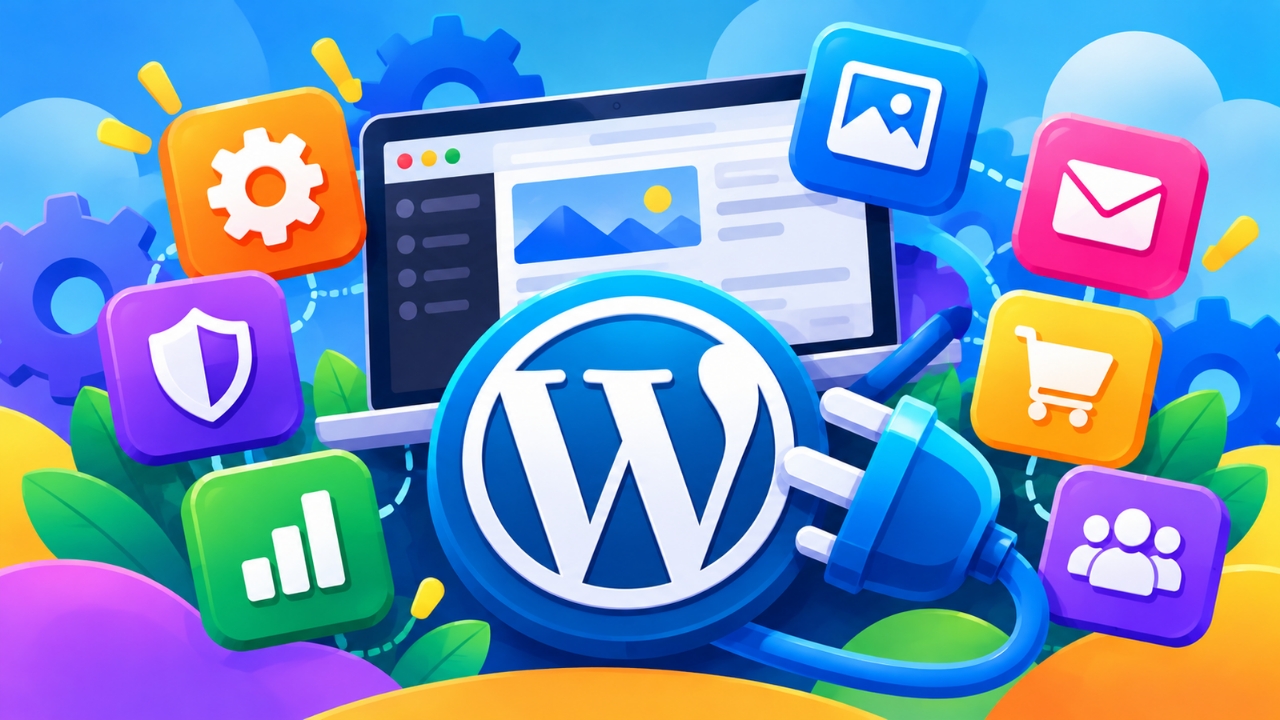
WordPress plugins give you more ways to customize your website and expand what it can do. Whether you’re running a personal blog, managing a business website, or building an online store, you’ll find plugins designed for a wide range of needs. With thousands of options available, you can explore different tools and add features that support your website’s goals without having to build everything from scratch.
One of the best things about WordPress plugins is the variety of features they offer. You can use them to create contact forms, improve website security, optimize search engine visibility, compress images, or connect your site to external services. Some plugins focus on a single task, while others combine several features into one package, giving you different ways to manage your website.
Just like WordPress themes, plugins come in free and premium versions. Free plugins are often available through the official WordPress.org plugin repository, allowing you to add useful features without paying for a license. Premium plugins may offer advanced functionality, additional integrations, dedicated support, or more frequent updates, although the benefits vary depending on the developer and the product.
If you’re just starting out, free plugins can provide many of the features you need to build and maintain a website. For example, you can find free tools for SEO, contact forms, caching, security, and backups. Before installing one, take a moment to check its features, update history, compatibility, documentation, and user feedback so you can make a more informed choice.
Premium plugins may become useful when your website needs capabilities that a free version doesn’t provide. Depending on the plugin, a paid plan or license might unlock advanced settings, automation, additional integrations, or professional support. However, paying for a plugin doesn’t automatically guarantee that it’s the right fit, so compare its features and requirements with what your website actually needs.
Where you get your plugins also depends on the WordPress platform you’re using. WordPress.com provides a plugin marketplace where you can discover plugins, while the WordPress.org plugin repository offers a large collection of free plugins for compatible WordPress installations. You can also obtain premium plugins directly from third-party developers, provided they work with your platform and installation environment.
If you’re using WordPress.com, you can install plugins on any paid plan, subject to compatibility and the platform’s current requirements. You can explore plugins available through the WordPress.com marketplace, use compatible free plugins from the WordPress.org repository, or upload compatible premium plugins obtained from third-party developers. To learn how the process works, check out our guide, “How to Install Plugins on WordPress.com“, for step-by-step instructions.
With a self-hosted WordPress.org website, you can install plugins through your WordPress dashboard or upload a compatible plugin package when needed. This gives you flexibility to explore free plugins, purchase premium tools, and choose features that fit your website’s requirements. If you’re new to the process, our tutorial, “How to Install Plugins on WordPress.org“, explains how to get started with installing plugins on your website.
SEO is one area where plugins can be particularly useful, especially if you want people to discover your website through search engines. Depending on the tool, SEO plugins can help you manage metadata, generate XML sitemaps, analyze content, and configure other search-related settings. If you’re looking for options that won’t require an initial purchase, check out our guide, “Top Choice Free WordPress Plugins for SEO”, to explore free tools that can support your SEO workflow.
Although plugins can add valuable functionality, installing too many without a clear purpose can make website management more complicated. Some plugins may overlap in their features, while others may introduce compatibility issues, affect performance, or require additional maintenance. Before installing a new plugin, consider whether you really need its features and whether an existing tool can already handle the same task.
It’s also important to keep your plugins updated and obtain them from reputable sources. Updates can include security fixes, bug corrections, compatibility improvements, and new features, so leaving plugins outdated for long periods can create avoidable risks. Before updating a critical plugin, make sure you have a recent backup and consider testing the update on a staging site if one is available.
As your website grows, the plugins you need may change along with your goals and workflow. A new website might only need a few essential tools, while a larger project may require integrations for eCommerce, analytics, marketing, or membership management. Reviewing your installed plugins from time to time can help you remove unnecessary tools, reduce overlap, and keep your WordPress website easier to maintain.
How to Use WordPress Themes and Plugins Effectively
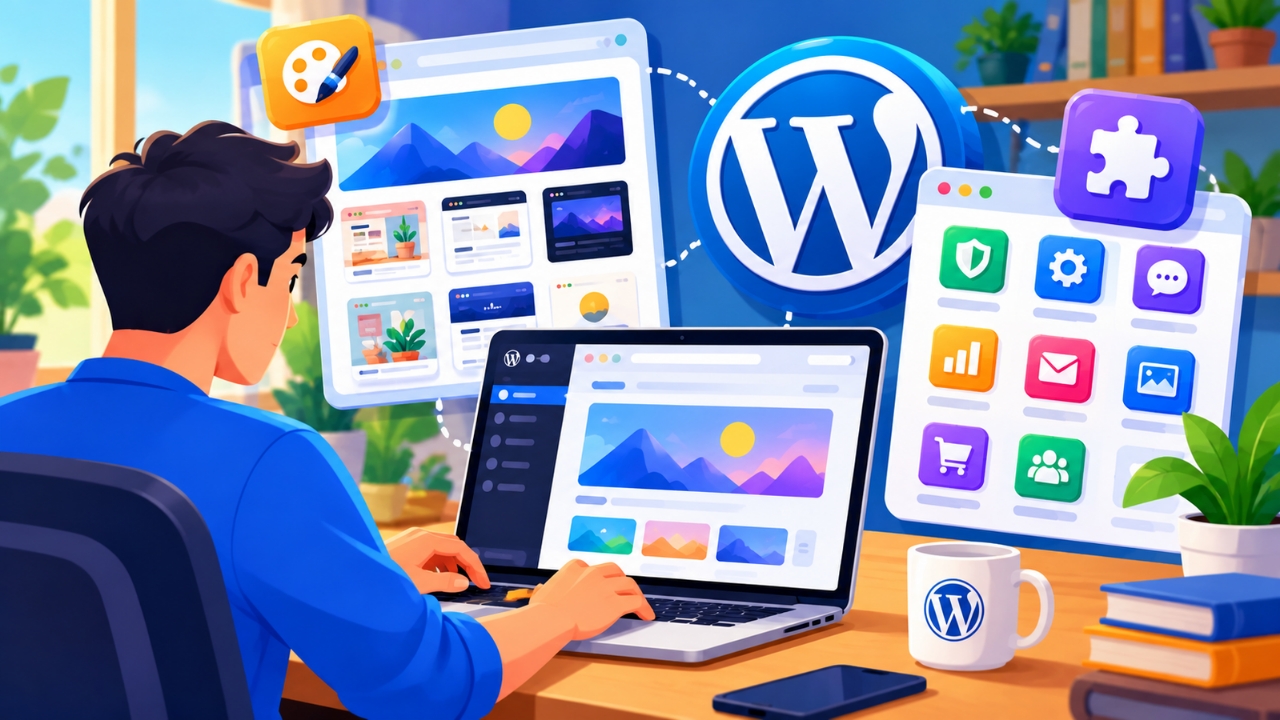
Now that you’ve explored WordPress themes and plugins, it’s time to look at how you can use them together on your website. Although they serve different purposes, both are part of the broader customization experience that makes WordPress so flexible. Understanding how to choose, install, and manage them can help you build a website that fits your needs without making the process more complicated than it needs to be.
When choosing a theme, start by thinking about your website’s purpose, target audience, and overall design. Look for a theme that offers the layout and customization options you need, whether you’re creating a blog, a business website, or an online store. You can then explore plugins that provide additional features to support your content, improve your site’s functionality, or simplify everyday tasks.
You don’t necessarily need to install every theme or plugin that catches your attention. Instead, focus on the features your website actually needs and choose tools that work well together. Before installing anything, check its compatibility, update history, documentation, and available support to help avoid unnecessary problems as your website develops.
Your experience may also vary depending on whether you use WordPress.com or a self-hosted WordPress.org installation. WordPress.com provides hosting and platform management, with theme and plugin options depending on your plan and the platform’s requirements. WordPress.org software gives you greater control over your hosting environment and installation, although you’ll generally be responsible for managing updates, backups, security, and compatibility with your hosting setup.
Once your theme and plugins are in place, take some time to review how your website looks and performs. Test your pages on mobile devices, check important features such as navigation and contact forms, and make sure your plugins work as expected. Keeping your themes and plugins updated, maintaining regular backups, and removing tools you no longer use can also help you manage your website more effectively.
As you become more familiar with WordPress, you can adjust your setup to match your changing needs. You might experiment with a different theme, add a plugin to support a new feature, or replace an existing tool with one that better fits your workflow. Making these changes carefully and reviewing their impact will help you maintain a website that remains useful, accessible, and easier to manage as it grows.
Final Thoughts
Understanding WordPress themes vs plugins gives you a clearer picture of how to customize your website and make the most of the WordPress ecosystem. Whether you’re building a blog, a business website, or an online store, choosing the right tools can help you create a website that matches your goals without adding unnecessary complexity.
Remember that WordPress.com and WordPress.org offer different website management experiences, so your available options may depend on the platform and plan you choose. From free and premium themes to plugins that add useful features, there’s plenty of flexibility to explore as your website grows. Take the time to compare your options, check compatibility, and choose tools that suit your actual needs.
Ready to take the next step? Explore our other WordPress guides on BuildWithWP to learn more about installing themes, choosing useful plugins, and customizing your website. The more you understand the tools available to you, the easier it becomes to build, manage, and improve your WordPress website with confidence.